Skip to content

Managing complex pay items in B2W Estimate with this time saving tip

2 minutes read
|
November 5, 2024

Share this post:

Manage Complex Pay Items in B2W Estimate with this Time Saving Tip

Working faster is one of the big advantages of construction estimating programs like B2W Estimate. Here is a tip that can help estimators save time by managing complex pay items with many components without having to look at the details of all the different components of an item one by one. The trick is to customize the Item Listing tab grid to show information that can then be reviewed and modified on the grid itself.

Grid default view
B2W Estimate - Grid Default View

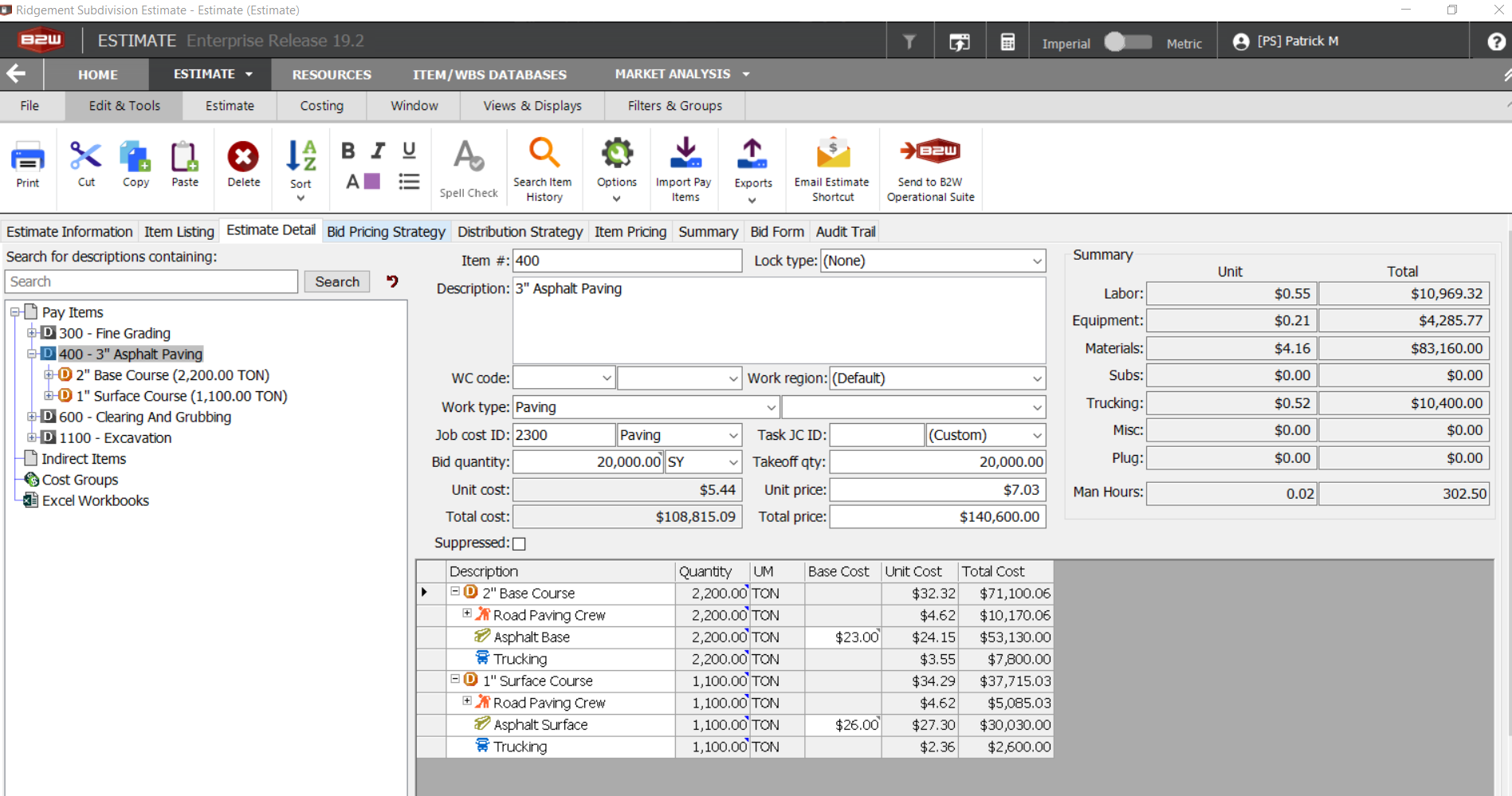
This image shows pay item 400 – 3” Asphalt Paving, and several columns have been added to the grid default view:

By adding columns, I can see much more information and edit many fields directly from that grid. I also chose to show all levels to let me see all of the components of the item.

Production and material information

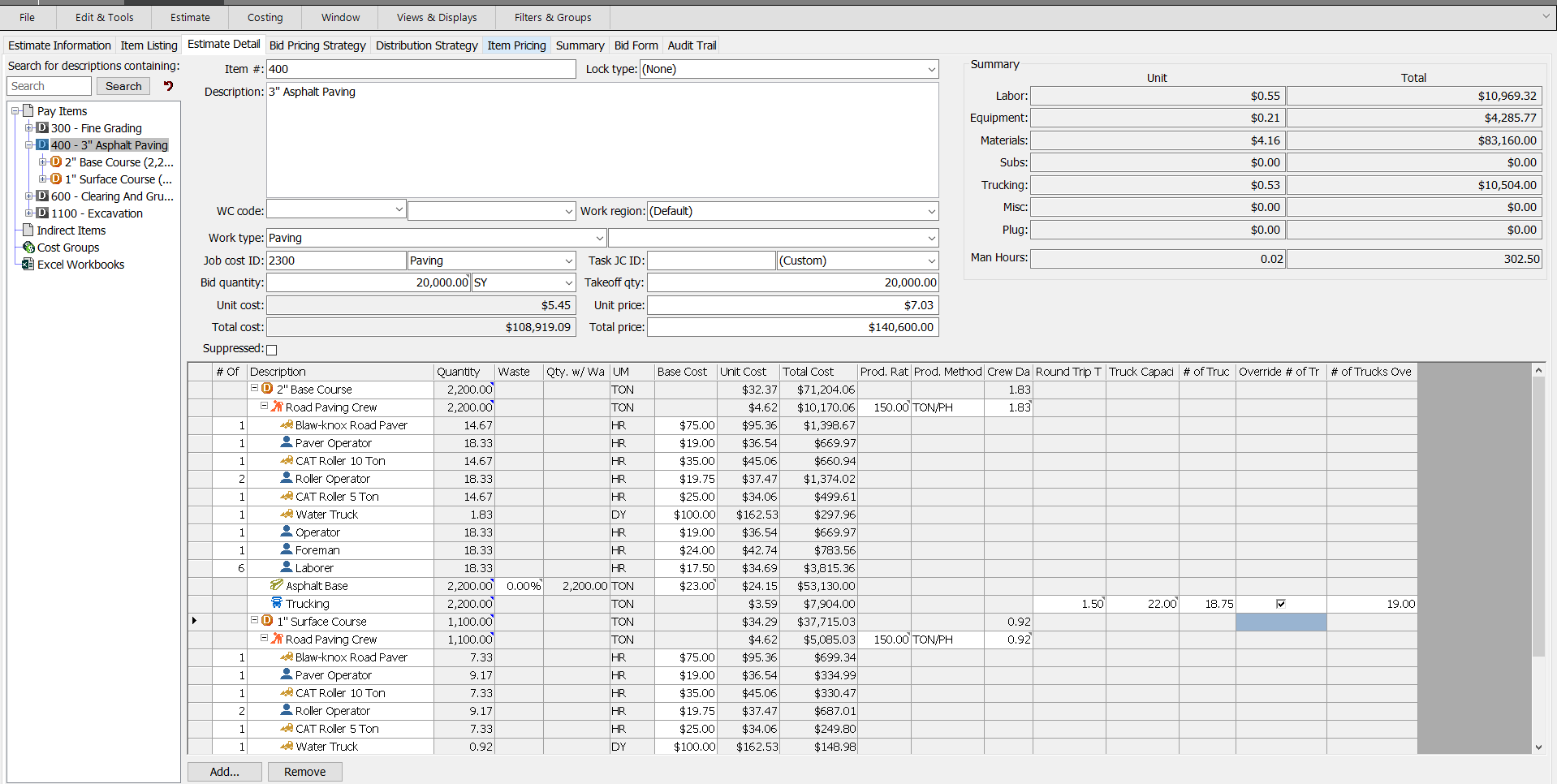
Columns can be added by right-clicking anywhere on the header row, selecting Customize Column and then clicking Add. For example, I added related production and material information in the image below. Estimators can also order the columns to their liking. I like the column called Number Of to be the first one.
B2W Estimate - Related Production and Material Information

From the grid, I can now adjust the size of my crew size and its productivity without having to go into the detail of the crews. I can just enter the appropriate values in the open field in white.

I also added the Waste factor as well as the Quantity with Waste for the materials, and I can adjust my factor on that screen as well.

Lastly, on this example, I included several of the Trucking fields to help me quickly see and adjust my material trucking.

You can also manage factors and Excel workbook links, when applicable, on this screen by right-clicking any of the fields with the top right caret and selecting Set Value.

Not all tasks can be performed on this screen, but for well-defined items and tasks, it can bring a huge gain in speed when building an estimate. For instance, you can remove components like labor or equipment in a crew by clicking on Remove at the bottom of the screen. To add the same components in a crew, you would need to double click on the crew so that the detail screen shows that crew.

Estimate Detail tab

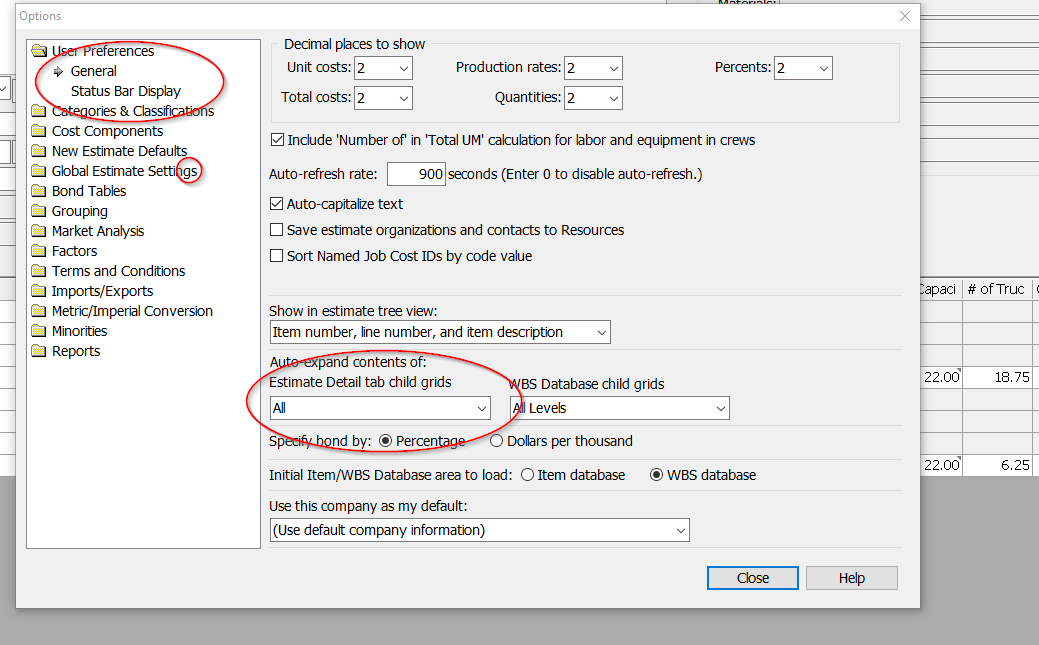
Another tip that makes this feature even more convenient is to change the default value that controls how the content of the Estimate Detail tab expands. Every time you make a change, the way the list is expanded changes back and does not show all of the components. To change that behavior, open the Tools Option or, if you are not in an estimate, simply click Option, go to the User Preferences section and select the General option. On that screen, select All in the Auto expand content of the Estimate Detail tab child grids, as shown below. This will make the grid in Estimate Detail always show you all of the components of any lines selected in the Tree.
B2W Estimate - Estimate Detail Tab

Related articles

Article

Agentic AI: a foundation for physical industries

Just as electricity powers entire cities rather than lightbulbs alone, AI is evolving from simple ch...
Read full article
Article

AI change management: empowering people first

AI adoption starts by empowering your team. By automating repetitive tasks, organizations elevate em...
Read full article
Article

Data fragmentation: AI’s true ceiling

AI's true limitation isn't the technology, but data fragmentation. To unlock AI's potential, busines...
Read full article
Attention

We tried to combine the products in your guest cart with your saved cart, but we encountered an issue while merging them. When choosing a subscription, please select either monthly or yearly as they cannot be combined. Kindly review your cart before proceeding to checkout.

Cart updated
Some items in your cart are not available for purchase in your region, so we removed them. Please review your cart before proceeding.

Items Removed:
Attention

The software you are trying to purchase is not available in your country or region.

Cart updated
The items in your cart have been updated for two reasons. Firstly, the prices now match the currency linked to your account address. Secondly, some items have been removed because they are not available for purchase in your region. Please review your cart before proceeding.

Items Removed:
Cart updated
The items in your cart have been updated for two reasons. Firstly, you've added too many of one item to your cart. Secondly, some items have been removed because they are not available for purchase in your region. Please review your cart before proceeding.

Items Removed:
Cart updated
The items in your cart have been updated for three reasons. Firstly, the prices now match the currency linked to your account address. Secondly, you've added too many of one item to your cart. Thirdly, some items have been removed because they are not available for purchase in your region. Please review your cart before proceeding

Items Removed:
Cart updated

Your currency has been changed to match the currency associated with your account address.

Cart updated

Your cart has been updated for two reasons. First, the prices now reflect the currency associated with your account address. Second, you've added too many of one item to your cart. Please review your cart before proceeding.

Cart updated

While combining the products in your guest cart with your saved cart, at least one item in your cart has exceeded the maximum allowable quantity. Please review and correct your cart before proceeding to checkout.

Attention

We were unable to access your account information. Please contact customer support for assistance.

Attention
Unable to update shopping cart information. Please refresh the page to resolve the issue. If this issue persists, please contact Trimble support.
© 2026 Trimble Inc.

Trimble is a global technology company that connects the physical and digital worlds, transforming the ways work gets done. With relentless innovation in precise positioning, modeling and data analytics, Trimble enables essential industries including construction, geospatial and transportation. Whether it's helping customers build and maintain infrastructure, design and construct buildings, optimize global supply chains or map the world, Trimble is at the forefront, driving productivity and progress.